
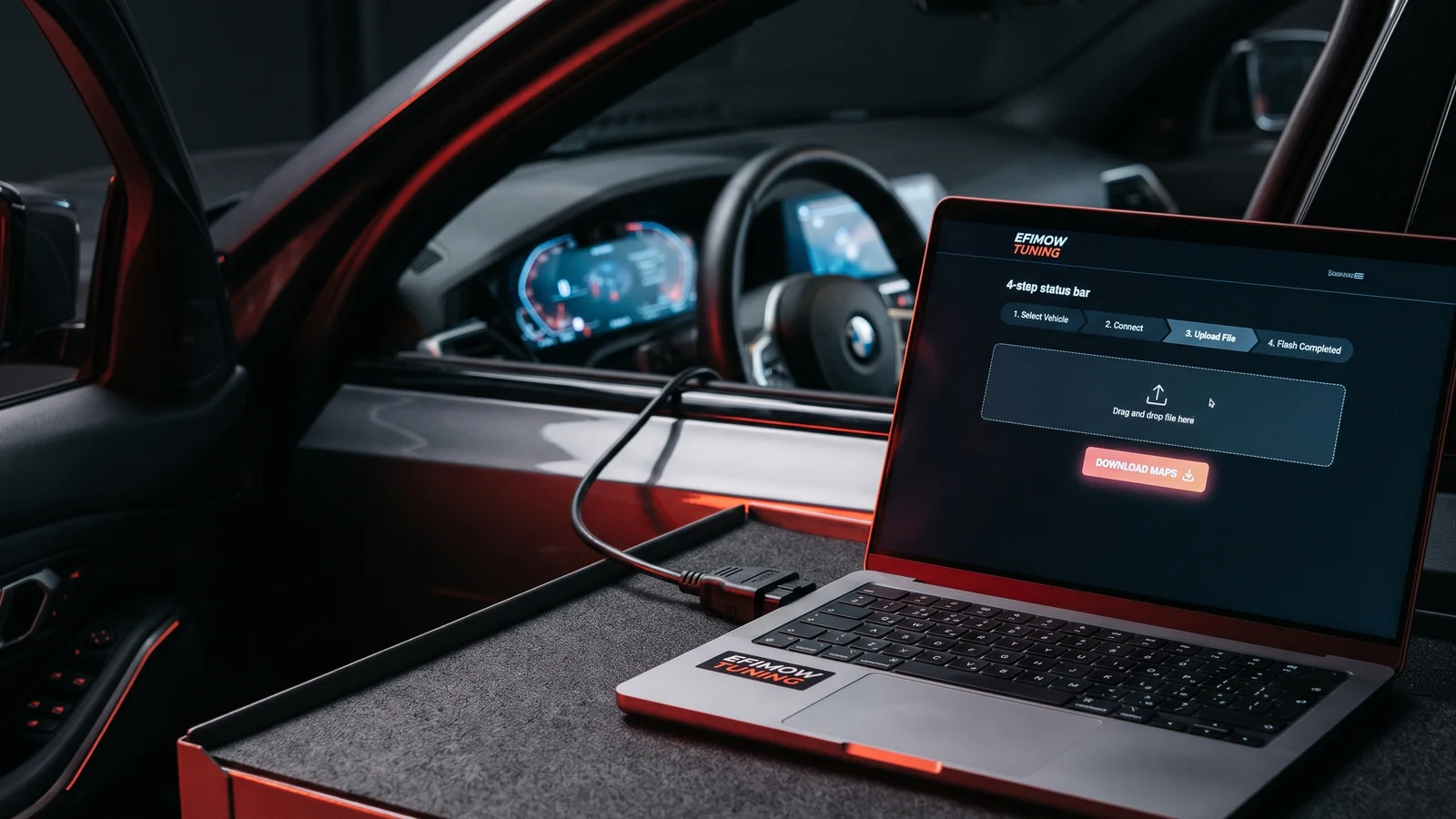
From Upload to Download: The Customer Portal Explained
Upload the original file, follow the status, unlock the tuning file and flash it: how your BMW tune runs through the customer portal step by step.
October 25, 2026 by Leo Efimow
With BMW tuning, your car does not come to us; your file does. The customer portal is where both meet: here you upload your ECU's original software, here you see how far your calibration is, and here you pick up the finished tuning file. Once you know the process, you will notice it is less complicated than "remote tuning" sounds. In this post we walk through the portal step by step.
Before you start: what you need
The portal is only as good as what you upload. Before your first read-out, have the following ready:
- a Windows 10/11 laptop,
- a flasher tool with a matching OBD cable: either your own (for example MHD, BM3, Bimmer-Flasher, MS4X, KESS/KTAG or Autotuner) or the one you received with your order,
- the car with a charged battery, ideally on a charger or power supply,
- a stable internet connection.
You already confirmed these points when ordering, together with the technical condition of the car and the legal framework. After ordering, you will find your job in the portal under your orders.
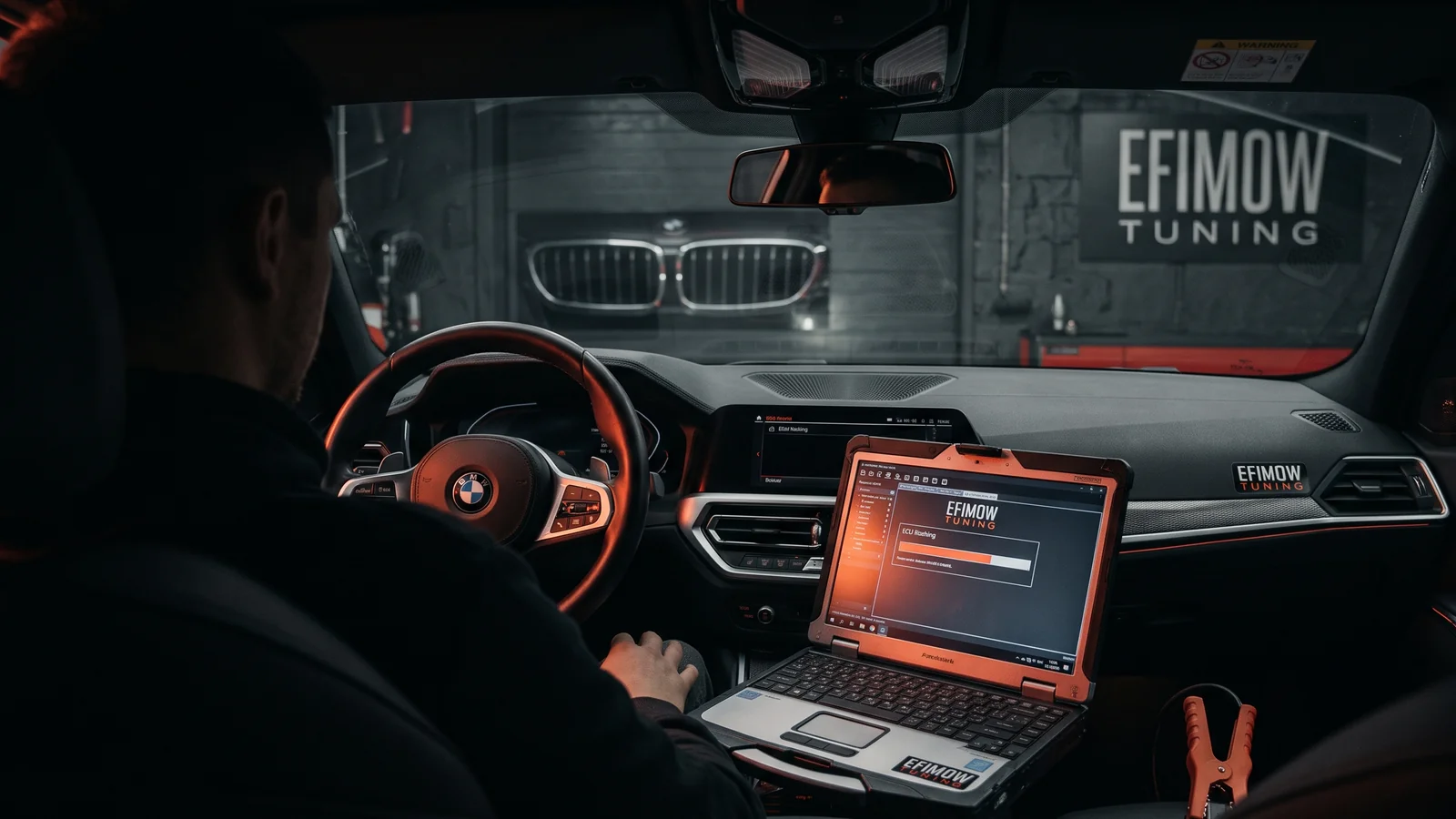
Step 1: read and upload the original file
For every order, the portal has a flash guide for your ECU, split into two phases. Phase 1 is "Read & upload": it shows how to read the original software with your tool and names the cable you need. If no finished guide exists yet for your ECU, a note says so and we support you personally.
There are two upload fields:
- "Tuning / partial read / virtual read": this is where the file you read via OBD goes, for example with MHD or BM3.
- "Complete backup (optional)": if you have a full backup of your ECU, for example from a boot mode read.
If a gearbox calibration is part of your package, there is also a field for the TCU read file. Important: the upload is an additional copy. It does not replace your own backup of the original file. That belongs in at least two separate places.
Tips for a clean upload
From the workshop perspective, the speed of the whole job is often decided at the upload. A few points help:
- Upload the file exactly as your tool saved it. Do not rename it, unzip and re-zip it, or open and save it in another program.
- Check that the read was complete. Most tools report at the end whether everything was read. If it was interrupted, read again rather than uploading half a file.
- Note which tool you used. That makes things easier if questions come up.
- Say whether hardware on the car has been changed. Intake, exhaust or intercooler affect the calibration. The stage you chose when ordering should match the actual state of the car.
The cleaner the starting file, the fewer questions and the sooner your job shows "Tuning file ready".
Step 2: follow the status
After the upload, the portal shows the state of your job in four stages:
- Waiting for your file: no upload has arrived yet.
- File received: your file is here.
- Being tuned: we are working on your calibration.
- Tuning file ready: your file is ready for download.
The calibration is done by hand, based on your original file and the options you chose. Your file is usually ready within 48 hours. With very modern or complex ECUs it can take a little longer in individual cases. If something needs clarifying, you will see a message from the tuner in the portal, for example if the uploaded file is incomplete and needs to be read again.
Step 3: pay the balance and unlock
When your job shows "Tuning file ready", the download is still locked at first. This is where our two-phase model comes in: when ordering, you only paid the hardware and a 5 € deposit. Now you pay the remaining software price, i.e. the price of the calibration minus the deposit. The portal labels this "pay to unlock". If a gearbox file is included, it is unlocked together with the main tune.
Before the first download, you confirm that you waive your right of withdrawal for this digital content. That is usual for individually created files: a downloaded file cannot be returned.
Step 4: download and flash back
After payment you can download the tuning file. At the same time, phase 2 of the flash guide unlocks: "Flash back". It describes how to write the finished file to the ECU with your tool. The most important rules are the same as for reading: support the battery, laptop on mains power, do not move the cable, do not interrupt the process.
If there is a revised version of your file later, it appears in the portal as a separate revision that you can download on its own.
Your account at a glance
The portal is more than an upload form. Under your orders you find all tuning jobs with vehicle, ECU, chosen stage and options as well as their status. For each job, the uploaded original files, the finished tuning files and the matching flash guide sit together. If you later have a second car tuned, it appears as a separate job next to it. And if your vehicle is missing from the selection or data are wrong, you can report it directly. That way you have everything belonging to your tune in one place.
If something goes wrong while flashing
For problems, the portal has a "Report flash problem" function. Describe what happened: the tool's error message, when it stopped, how the car behaves. The more precise the details, the faster the cause can be narrowed down. Important: after an interruption, do not keep trying at random. That is exactly what your saved original file is for.
Special case: ECUs that need an unlock
On some BMW ECUs of the MG1/MD1 generation, the normal process is not enough because the ECU has to be unlocked once before the first tune. Up to build date 08/2019 this works directly over OBD. From 09/2019 it needs a bench unlock, for which the ECU is removed once and sent to us. After that, everything runs over OBD and the portal as described above. The configurator shows you before ordering whether your car may be affected.
Legal framework
By flashing the tuning file you change your car's engine software. This voids the operating permit, and our calibrations are intended exclusively for motorsport. The details (including insurance and warranty) are in the motorsport notice.
Conclusion
The customer portal covers the whole journey: upload the original file, follow the status, pay the balance, download the file and flash it yourself, with a guide, messages from the tuner and a function for reporting problems. If you still need to choose your car, start in the configurator; an overview of all vehicles is under tuning.